
Dashboard
The Salaries Dashboard allows you to monitor salary contracts and bonuses for your current players. At the top of the page, you will see the total number of uploaded salary contracts and can navigate through dedicated views for Payroll, Agency Fees, Forecast, and Contracts.

Payroll
The Payroll tab provides a detailed breakdown of all wage-related costs for a selected month. Within this view, you can perform the following actions:
-
Filter by Date: Use the calendar dropdown to filter by month and year to review specific historical or current data.
-
Cost Breakdown: By expanding a player's entry, you can see a detailed split between their Base Salary and any Bonuses due.
-
Total View & Export: The interface provides an immediate view of total monthly costs at the top of the list. You can download a CSV file for reporting, which includes: Player Name, Line Item, Clause ID, Trigger Date, Currency, and Amount.
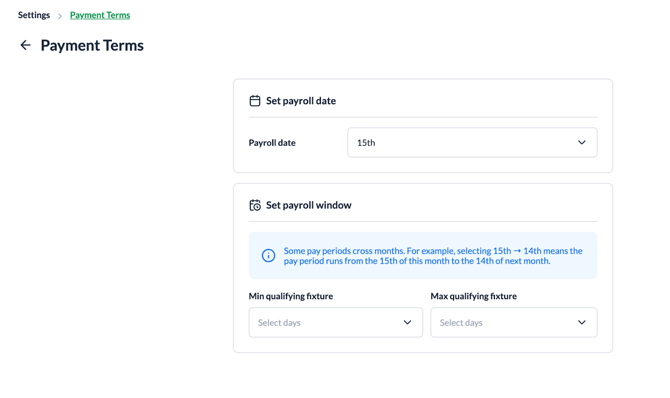
The Payment Terms You can define exactly how your club’s pay periods are structured to align with your actual distribution schedule:
-
Payroll Date: Set a specific day (e.g., the last day of the month).
-
Payroll Window: Configure start and end days for qualifying fixtures, useful if pay periods span different months.
-
Configuration: Navigate to Settings via your profile (top-right) and select Payment Terms. These settings apply globally to all bonuses.
Agency Fees
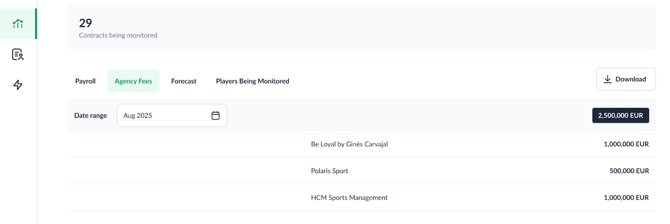
The Agency Fees feature allows you to proactively calculate and track commission amounts owed to player representatives.
-
Filtering: Use the Date Range calendar to filter and view all commissions due for a specific month.
-
Visibility: The interface displays a list of players, their associated agencies, and the exact monetary sum owed.
-
Reporting: Use the Download button to extract your agency fee data for use in external accounting systems.
Forecast
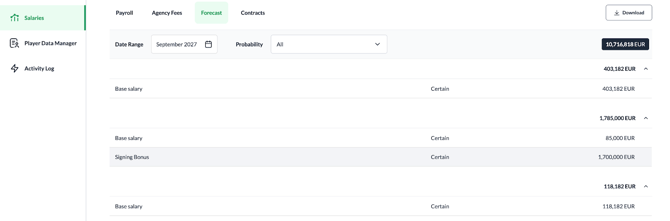
The Forecast tab allows you to project future salary-related costs and anticipate upcoming payment obligations that already triggered.
-
Date Range Filtering: Select a specific future month and year to see projected costs.
- Cost Breakdown: Expand any player entry to see specific projected items, such as Base Salary or Signing Bonuses.
-
Total Projected Outlay: Displays the combined total of all forecasted payments at the top of the list.
Contracts
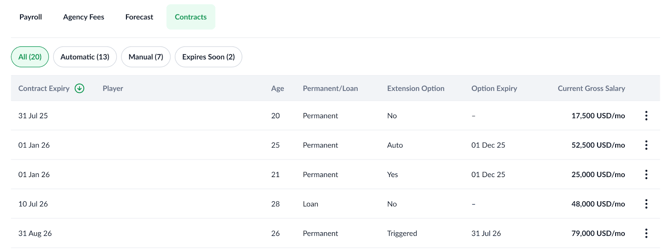
The Contracts tab serves as a central registry for all active player agreements, focusing on contract durations and extension options.
-
Expiry Tracking: The table is sorted by Contract Expiry in ascending order, placing players with the soonest end dates at the top.
-
Extension Statuses:
-
No: No extension clause exists.
-
Yes: A manual extension option is available but not yet used.
-
Auto: An automatic extension exists, but conditions are not yet met.
-
Triggered: The extension has been successfully activated.
-
Expired: The window to exercise the option has closed.
-
-
Filtering: Focus on specific categories: All, Automatic, Manual, or Expiring Soon.
Manually Activating an Extension:
-
Action Menu: Click the three dots icon next to a player with a "Yes" or "Auto" status.
-
Trigger Option: Select "Trigger option" to open the contract view.
-
Update End Date: Review and edit the Contract end date (prepopulated from the original clause).
-
Finalize: After saving, you can make final amendments on the player's contract page before returning to the dashboard.